
Find a Family
Family Square has a hall, a Discover view and a ranking. Browse communities with a shared identity and see which suit you.
Communities with a shared identity
Vozzo Families are community groups with a shared name, crest and chat. Explore how to find a Family, connect with its members and review the requirements for starting a group of your own.
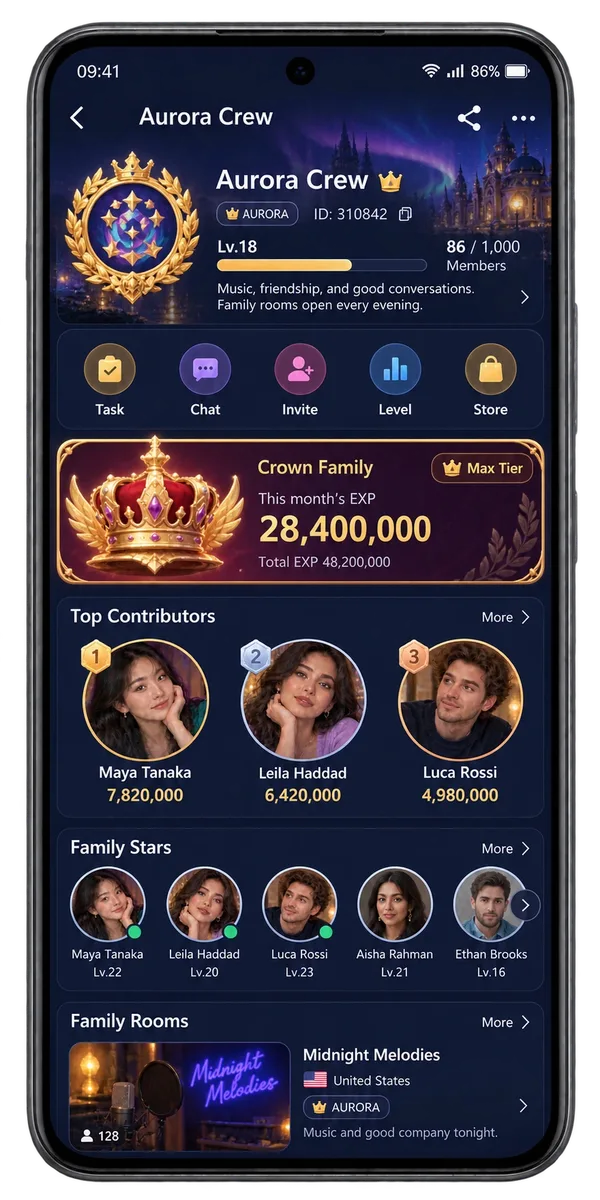
Inside a Family
Family Square has a hall, a Discover view and a ranking. Browse communities with a shared identity and see which suit you.
Family Home brings together the Family identity, your role, the announcement, tasks, chat, invitations, the level, the store and the people who contribute.
Family Chat is a group conversation for members, with the usual message and composer tools. Access follows Family membership.
Contribution adds up to a Family level. Lifetime totals and current-period totals are different numbers, and the app shows both.
The member list shows each person's role and contribution. What a member can see and what a Leader can manage are different.
Invite people who are eligible for the Family. Sending an invitation does not mean the person has joined.
Starting your own
Creating a Family needs a name, a tag and a description, and the app checks that your account is eligible. Review the eligibility, fee and level requirements shown in the app before continuing. Read Family Rules so you know how membership, contributions and management work.
Questions, answered
Visit Family Square to explore the hall, Discover and Ranking views. Find communities with a shared identity and look for the one that suits your interests. If you already belong to a Family, your own Family stays easy to find and the app does not offer joining or applying to other Families as though you were unassigned.
One name, familiar people and a shared conversation: Family Home brings together the crest, your role, announcements, tasks, chat, invitations, level, Store and community contributions. Explore the activities and information available to your membership. Leaders and members have different permissions, so managing the community and taking part in it are different experiences.
Choose a name, tag and description that give your community an identity. The app checks your eligibility before creation, including whether you already belong to a Family. Review any fee and minimum-level requirement shown at that time. Creating a Family happens inside the app after its requirements are met, rather than through a website application.
Open the member list to see the people and roles in your Family. It helps turn a community name into familiar faces and makes the organisation of your group easier to understand. The actions you can use depend on your membership and role; a member does not automatically receive a Leader's management permissions.
Authorised Family managers can review the membership-request queue and use the accept or decline actions available to their role. Membership rules, capacity and permissions still apply. A request means someone wants to join; it is separate from accepted membership. Applicants should check their status in the app rather than assuming an application has been approved.
Use Family Invite to find eligible people and send the invitations your role allows. The app checks who can be invited, including existing membership and other eligibility conditions. An invitation opens the door to your community; acceptance and completed membership are separate steps. Use the app's status to see what has happened next.
Family Chat gives members a shared conversation for everyday updates, plans and the moments between live rooms. Use the existing message and composer tools to keep your community connected. Access and moderation follow Family membership. Family Chat is inside the app, rather than a public chat room on this website.
Open Family Level to understand contribution, EXP thresholds, current level and the progress or honour shown for your community. Lifetime contribution and the current period describe different totals. Follow the app's rules for what counts and what each tier means, rather than assuming every level opens a particular capacity or benefit.
The Family banner brings your community's identity into a promotional presentation you can share through the options shown in the app. Give friends a recognisable introduction to your Family and what it stands for. Sharing the banner does not bypass invitation requirements, add a member automatically or create a separate referral reward.
Open Family Rules before creating, joining or managing a community. It explains the tiers, contribution and management terms that apply. Check the current requirements in the app before relying on a fee, threshold or benefit. A little clarity at the start helps everyone understand their role as the Family grows.
Take your people with you
See the live video, messaging and community features, then check official app download details for your next step.
Get Vozzo